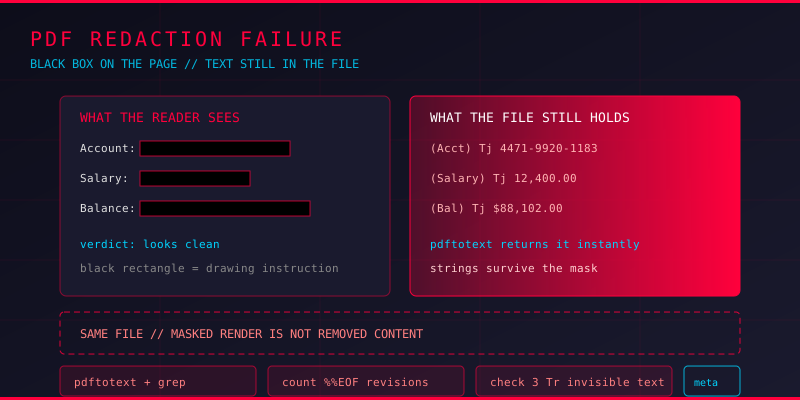
Somebody in a legal or compliance team needs a name, an account number, or a salary figure out of a PDF before it goes outside the company. The obvious approach is to open it in a viewer, drag a black rectangle over the sensitive text, and save. From the outside the document looks correct. The pages render, the rectangles sit where the sensitive content used to be, and everybody moves on.
What almost nobody realises is that a black rectangle is a drawing instruction, not a deletion. The text underneath is still in the file. It just is not visible any more.
Where the Removed Text Hides
There are several places a removed string can survive, and they behave differently under different tools.
Underneath the annotation
This is the common case. A viewer redaction tool adds a filled rectangle to the page content stream, drawn after the text. The text object itself is untouched. Copy and paste from the page, run pdftotext, or open the file in any editor that extracts text and the sensitive content comes back out in order.
$ pdftotext redacted.pdf - | head -5
INVOICE 2291
Customer: A. Merchant
Account: 4471-9920-1183
Balance Due: $12,400.00
The account number is right there, exactly as it was before the rectangle was drawn. Nothing about the file changed except that a rectangle was painted on top.
In the incremental update history
PDF supports incremental updates, where a new revision is appended to an existing file. If the original text was in the first revision and the black rectangle was added in a later one, the original bytes are still physically present in the file, sitting before the first %%EOF. Truncating the file at that marker recovers the pristine document, complete with the text that was supposed to be gone.
In metadata, annotations, and form fields
Comments and annotations carry their own text. Form field values survive independently of page content. Document properties often record the original author, the software used, and sometimes entire revision histories with fragments of the text. None of that is affected by drawing on the page.
In tagged structure and alt text
Accessible PDFs carry a structure tree and alternate descriptions for images. A scanned invoice redacted with black bars may have the full extracted text sitting in the OCR layer as invisible text, invisible render mode, or an image alt attribute. The visible page looks clean. The accessibility tree tells the whole story.
Testing Whether a Redaction Actually Worked
The verification habit is simple: extract, then search. If the string comes out of the file, the redaction failed regardless of how convincing the page looks.
# 1. Extract all text and look for the secret
pdftotext redacted.pdf - | grep -i "4471-9920"

# 2. Dump the raw content stream for inspection
qpdf --qdf --object-streams=disable redacted.pdf qdf.pdf
grep -a -i "4471-9920" qdf.pdf

# 3. Look for invisible text operators
grep -aE "3 Tr|TJ|Tj" qdf.pdf | head -20
3 Tr is text render mode 3, which means invisible. It is the standard way of placing a text layer under a scanned image, and it is the standard way a secret survives a "redacted" scan. The same idea shows up in malware as well, which is why these tricks get attention in PDF forensics circles generally.
Check the revision history
# How many revisions does this file have?
grep -a -c "%%EOF" redacted.pdf

# Recover the pre-redaction version
python3 - <<'EOF'
data = open('redacted.pdf','rb').read()
first = data.find(b'%%EOF') + 5
open('original.pdf','wb').write(data[:first])
print('recovered', first, 'bytes')
EOF
How to Redact a PDF Properly
Real redaction means the content is removed from the file, not covered on the page. There are two routes, and they suit different situations.
Route one: a viewer that actually redacts
Some tools implement true redaction: they delete the text objects and rewrite the page content stream rather than adding a rectangle. Adobe Acrobat Pro, Foxit, and a few open source tools do this properly. The critical part is that you must use the redaction tool, not a highlighting or shape tool, and you must confirm afterwards that the text is gone.
Route two: rebuild the document
For high assurance, render each page to an image and build a fresh PDF from the images with the redacted areas burned in as black pixels. The source text never enters the output file because the output file was never derived from the source text. This is the approach used for court filings, regulatory submissions, and anything where a leak would be reported publicly.
# Flatten to images, then rebuild - the text never survives
pdftoppm -r 300 -png input.pdf page
# draw your redactions onto the PNGs, then:
img2pdf -o redacted.pdf page-*.png
The trade-off is file size, lost text selection, and lost accessibility. If the recipient needs to read the remaining text, the rebuild route is a last resort.
Then clean the metadata
Whatever route you take, strip the document properties before release. Author names, software fingerprints, and editing history tell a reader more than they need to know.
exiftool -all= redacted.pdf
qpdf --remove-page-labels --empty --pages redacted.pdf 1-z -- redacted-clean.pdfHR Manager - Chennai and a title of Termination Letter - Employee 4471 is still a data leak. Metadata often carries more than the page did.
Building a Redaction Verification Step
Whether or not you are using a purpose-built redaction tool, treat every redaction as a claim that needs evidence. A short check closes the loop:
- Extract the text and grep for every string that was supposed to be removed
- Search the raw bytes, not just the extracted text, since content inside uncompressed streams will not show up in a text extraction
- Count
%%EOFmarkers to detect revisions and confirm whether an earlier version is still embedded - Check for invisible render modes and OCR text layers
- Strip and re-inspect metadata
- Open the output in a different tool and confirm the same result, since renderers differ in what they surface
Key Takeaways
A black rectangle is an instruction to draw a black rectangle. It says nothing about the text underneath, and the text underneath is usually still there. Any PDF redaction workflow that ends with a visual check is unfinished.
The habit that catches it: extract the text after every redaction and search for the exact strings you removed. If they appear, the redaction did not happen. Where the data must not survive at all, flatten to images and rebuild the document from scratch rather than editing the original.
Frequently Asked Questions
Does removing metadata make a PDF safe to share?
No. Metadata is one leak channel among several. Text content, revision history, annotations, form fields, embedded files, and OCR layers all need checking independently.
Can redacted text be recovered from a flattened PDF?
If the PDF was rebuilt from rendered images, the text was never in the output file, so there is nothing to recover. If the redaction was done by drawing on the page, the text is recoverable in seconds.
What is the fastest way to confirm a redaction worked?
Run pdftotext redacted.pdf - | grep -i "your-secret-string". It takes a second and catches the overwhelming majority of failures.
Does PDF redaction affect document signatures?
Yes. Any change to the file invalidates a cryptographic signature, and flattening to images destroys the signature entirely. If the document must stay signed, that constrains the approach to tools that produce a new valid signature over the redacted output.